A free app for your Mac
Screenshots that name themselves.
Shotcaller renames each new screenshot after what it shows, so you can find it later.

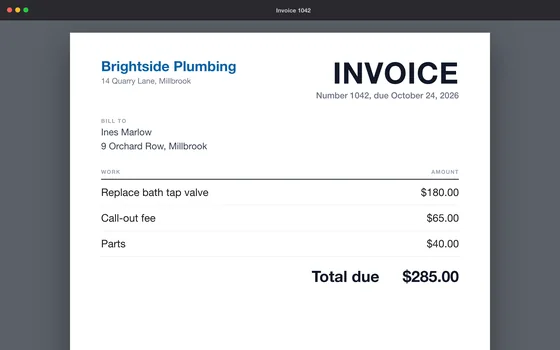
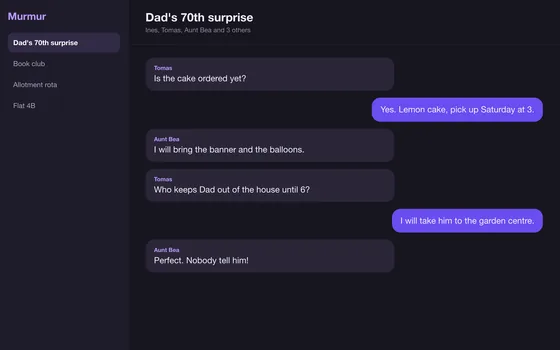
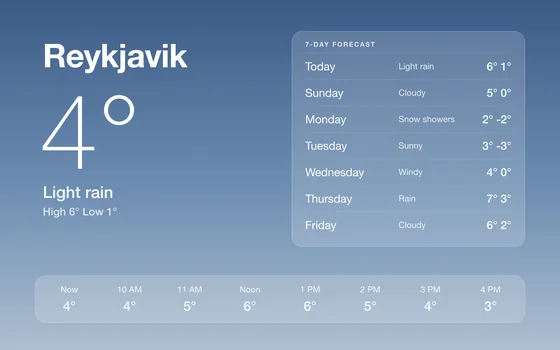
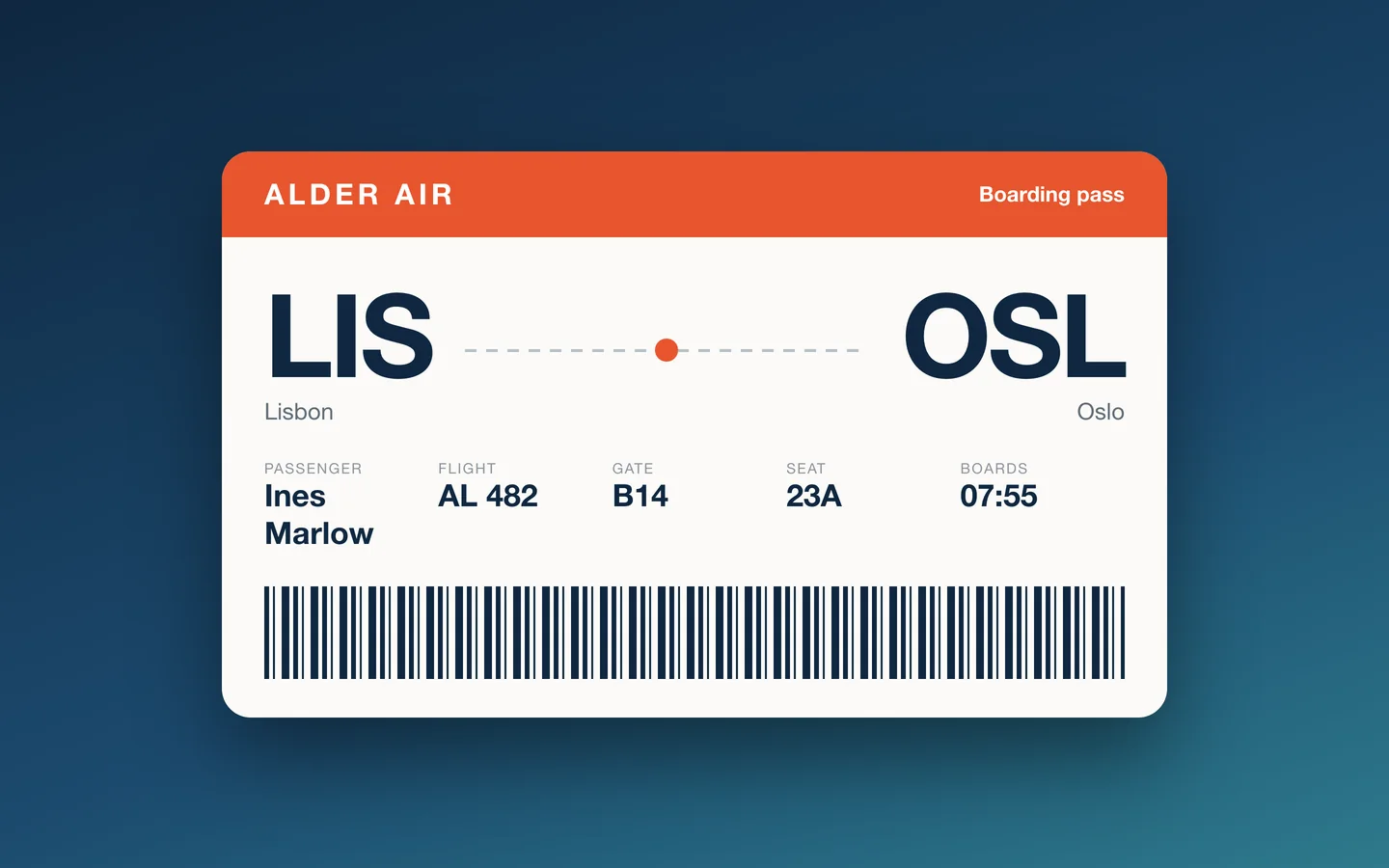
Type what you remember. The screenshot turns up.
Spotlight finds a file by its name. Shotcaller puts what the picture shows into the name.
Shotcaller reads the text, looks at the picture, then names the file.
Each step runs on your Mac.
Shotcaller names what the whole picture shows.
On macOS 27, Apple's model sees the picture as well as the text. Without the picture, one big word can take over the name.
Shotcaller takes out an app name that Apple's model only guessed.
Apple's model sometimes names a well-known app that is not in the picture. Shotcaller looks for the app's name in the text it read.
Shotcaller cleans each name for the Finder.
We gave it six messy names on purpose.
The new name arrives in seconds.
We timed Shotcaller on an Apple silicon Mac with macOS 27.
Screen recordings get a name too.
Shotcaller reads one frame of the recording. The frame is 30% of the way in, or at 20 seconds if that comes first.
When Shotcaller finds no good name, it leaves the file alone.
Shotcaller looks three times in all, ten minutes apart, in case a look went wrong.
Shotcaller only renames files that still have the name macOS gave them.
Shotcaller knows that name in 13 languages. It never renames a file twice, never replaces a file, and never deletes one.
Six settings, if you want them.
The settings sit in one small file. Shotcaller reads the file again every 30 seconds, so a change needs no restart.
With Apple Intelligence off, the biggest line of text becomes the name.
Shotcaller gives each line of text a score. It names files this way on Intel Macs and on macOS 13 to 15 too.
Nothing leaves your Mac.
No sign-up and no tracking. No line of the app's code can reach the internet. Look for yourself.
Install it once. Then forget it.
No window and no menu bar icon. Shotcaller starts when you log in.
-
1
Paste this into Terminal
git clone https://github.com/tstrider/shotcaller.git
cd shotcaller
./install.sh
Terminal is an app that comes with your Mac. Paste the three lines and press Return. The last line sets Shotcaller up, which takes about ten seconds.
-
2
Click Allow
macOS asks if Shotcaller can read your screenshot folder. Reading your screenshots is the whole job.
-
3
Take a screenshot
A few seconds later, the file has its new name.
Shotcaller needs macOS 13 or newer and Apple's free Xcode Command Line Tools. If your Mac does not have the tools, Terminal tells you how to get them. To remove Shotcaller, open Terminal and type cd shotcaller, then ./uninstall.sh. Press Return after each one.